
This is Part 3 of the Claude Code Series, a complete guide to Claude Code from first principles to real-world use. Start from Part 1 if you are just joining.
There is a moment in every new Claude Code user’s journey where they hit a wall.
Not because Claude Code is hard. Not because they are not technical enough. But because everything assumes they are already comfortable in the terminal. The install instructions say “open your terminal and run this command.” The tutorials show a black window full of text and jump straight to typing. Nobody stops to explain what they are actually looking at.
This post stops to explain it.
If you have been using a terminal for years, skip ahead to Part 4 where we do the full installation. This post is not for you.
But if the terminal feels like a place where things can go wrong and you would not know how to fix them, this one is worth your time. Because Claude Code lives in the terminal. You do not need to master it. But you do need to feel comfortable enough to not freeze up when you get there.
What the Terminal Actually Is
Your computer has two faces.
The one you normally see is the graphical interface. Windows, buttons, icons, folders you can click into, files you can drag around. It is designed to be approachable. You do not need to know what is happening underneath. You just point and click.
The terminal is the other face. It is a text-based interface to the same computer. Instead of clicking on a folder to open it, you type a command. Instead of dragging a file, you type a command. Instead of right-clicking to rename something, you type a command.
That sounds more complicated. In some ways it is. But in other ways it is more direct. When you click through a graphical interface, you are always working within the options the interface decided to show you. In the terminal, you can do things the interface never built a button for.
Claude Code needs the terminal because it needs to do things that do not have buttons. Running scripts. Installing packages. Reading output from code that just executed. These are not things a graphical interface was built to handle. The terminal is where they live.
How to Find Your Terminal
On a Mac, the terminal is called Terminal. You can find it by pressing Command and the Space bar at the same time, typing “Terminal”, and pressing Enter. It lives in your Applications folder under Utilities if you prefer to navigate there directly.
A newer option on Mac is iTerm2, which many developers prefer because it is more flexible. But the built-in Terminal works perfectly fine for everything in this series.
On Windows, the situation is slightly different. The old Windows command prompt (called CMD) exists but is not what you want for Claude Code. What you want is Windows Terminal, or better yet, PowerShell. Windows Terminal is available from the Microsoft Store and gives you a much better experience. You can also search for PowerShell directly from the Start menu.
There is a third option for Windows users that is worth knowing about: WSL, which stands for Windows Subsystem for Linux. This lets you run a proper Linux environment inside Windows. Many developers prefer this for working with tools like Claude Code. If you have heard of it and want to explore it, look up “WSL 2 install guide” and follow the official Microsoft instructions. But it is not required. PowerShell works for getting started.
On Linux, you already know where the terminal is.
What You See When You Open It
When you open the terminal for the first time, you will see something like this:
username@computername ~ %
Or on Windows it might look like:
PS C:\Users\YourName>
This is called the prompt. It is the terminal waiting for you to type something. The details of what it shows vary depending on your system and how it is configured, but the idea is the same everywhere. The terminal is ready. What do you want to do?
The blinking cursor after the prompt is where your typing appears. You type a command. You press Enter. Something happens. The result appears in the window. Then the prompt comes back, waiting for the next command.
That is the entire interaction model. Type, press Enter, read the result, repeat.
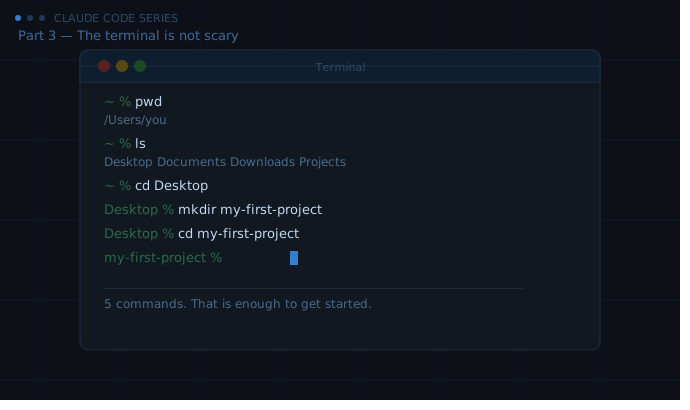
Five Commands That Cover Most of What You Need
You do not need to memorise dozens of commands before you can use Claude Code. In practice, a handful of commands will take you through almost everything in this series.
ls (on Mac and Linux) or dir (on Windows) — lists the files and folders in your current location. Think of it as looking at what is inside the folder you are currently in.
cd followed by a folder name — moves you into that folder. cd stands for “change directory.” Directory is just another word for folder.
cd .. — moves you up one level. Two dots means “go back to where I was.”
pwd — tells you exactly where you are right now. It prints the full path from the top of your computer’s file system to your current location.
mkdir followed by a name — creates a new folder. mkdir stands for “make directory.”
That is genuinely enough to navigate your computer through the terminal. Everything else you will learn as you need it, and Claude Code will often tell you the exact commands to run anyway.
if you are new to these commands and want to learn, you can refer to internet articles as there are plenty of those available.
The Concept of “Where You Are”
The most important thing to understand about the terminal is that you are always somewhere.
When you open a file explorer graphically, you can see which folder you are looking at. The terminal has the same concept but you have to keep track of it yourself. Every command you run happens relative to your current location.
If you type ls and see a list of files, those are the files in the folder you are currently in. If you run a script, it runs from that folder. If Claude Code creates a file, it appears in that folder unless you specify otherwise.
When Claude Code asks you to navigate to a specific folder before running a command, that is why. Location matters. Getting into the right folder before you start is good practice.
You can always check where you are with pwd. It will print the full path. If you are ever confused, that is the first command to run.
A Short Practice Session
Before reading Part 4, do this. It will take about five minutes and it will make the installation feel much less foreign.
Open your terminal.
Type pwd and press Enter. Read what it says. That is where you are.
Type ls (or dir on Windows) and press Enter. You should see a list of files and folders.
Type cd Desktop and press Enter. If you have a Desktop folder, you are now in it. If you get an error, the folder might be named differently. Try ls again to see what folders are available and pick one.
Type pwd again. You should see the path has changed to include Desktop at the end.
Type cd .. and press Enter. You are back where you started.
That is it. You have navigated your computer’s file system through the terminal. You are not a beginner anymore, at least not at the part of this that matters for what comes next.
One More Thing: Reading Error Messages
The terminal will show you error messages. This is normal and it does not mean something is broken.
Most error messages tell you exactly what went wrong. “Command not found” means you typed something the terminal does not recognise, usually a typo. “Permission denied” means you tried to access something your user account is not allowed to touch. “No such file or directory” means the path you typed does not exist, which usually means either a spelling mistake or you are in the wrong folder.
The instinct when something goes wrong in a terminal is to close it and try again. Resist that. Read the error message. It almost always contains the information you need to fix the problem. And if it does not, you can paste it directly into Claude and ask what it means.
That is one of the genuinely useful things about using Claude Code while learning the terminal. You have a knowledgeable person you can ask about every error message, every command, every unfamiliar piece of output. You are not alone in this.
What’s Next
Part 4 is the installation.
Every step is covered, including the ones that do not go smoothly. Node version requirements, API key setup, what to do when the command runs but nothing seems to happen, and how to confirm that Claude Code is actually installed and ready to use.
By the end of Part 4, you will have Claude Code running on your machine and you will have had your first interaction with it.
See you there.
Claude Code Series — Part 3 of 18. A complete guide to Claude Code from first principles to real-world use.