
This is Part 4 of the Claude Code Series, a complete guide to Claude Code from first principles to real-world use. Start from Part 1 if you are just joining, or go back to Part 3 if you still want to get comfortable in the terminal first.
Installation guides lie by omission.
They show you the happy path. The commands that work on the first try. The setup that goes smoothly because the person writing the guide already had everything in place and did not notice.
This post is not that. This is what actually happens when you install Claude Code, including the parts where something goes wrong and you have to figure out why. I am going to walk through every step, flag the places where people get stuck, and tell you exactly what to do when you hit them.
By the end of this post, Claude Code will be running on your machine. You will have had your first interaction with it. And if something went sideways, you will know what it was and how to fix it.
What You Need Before You Start
Claude Code has two requirements that are not negotiable.
Node.js, version 18 or higher. Claude Code is built on Node.js, a runtime that lets JavaScript run outside of a browser. You may or may not have it installed already. We will check in a moment.
An Anthropic API key. Claude Code talks to Claude through the API, not through the claude.ai website. The API is a paid service, billed by usage. There is no free tier for the API. You will need to create an account at console.anthropic.com, add a payment method, and generate a key. For light use while learning, the cost is very small. A few hours of experimenting typically costs less than a cup of coffee.
Let us handle both of these before touching Claude Code itself.
Step One: Check if Node.js Is Already Installed
Open your terminal and type this exactly, then press Enter:
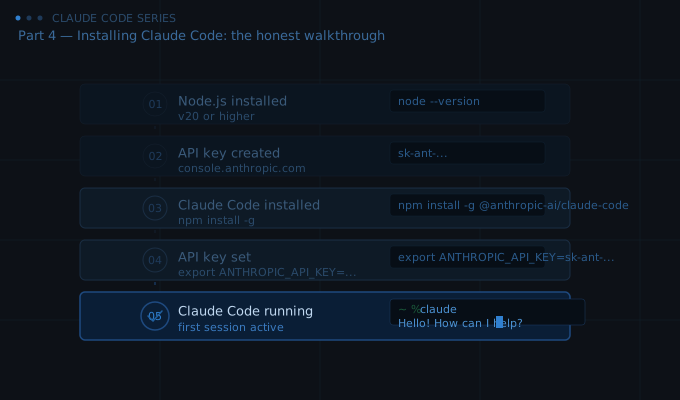
node --version
If you see something like v20.11.0 or any number starting with 18, 20, 22, or higher, you have what you need. Skip to Step Three.
If you see command not found or a version number lower than 18, you need to install or update Node.js.
Step Two: Install Node.js
Go to nodejs.org in your browser. You will see two download options. Download the one labelled LTS, which stands for Long Term Support. This is the stable version. The other option is the current release, which is newer but less tested. LTS is what you want.
Run the installer. Click through the default options. When it finishes, close your terminal completely, open a new one, and run node --version again. You should now see a version number starting with 18 or higher.
If you are on a Mac and already use a tool called Homebrew, you can install Node with brew install node instead. Either method works.
If you are on Windows and the installer finishes but node --version still says command not found, close PowerShell completely and open it again as Administrator. Type node --version again. Windows sometimes needs the terminal restarted before it recognises newly installed programs.
Step Three: Get Your API Key
Go to https://platform.claude.com and create an account if you do not have one.
Once you are logged in, look for the API Keys section. It is usually in the left sidebar or under your account settings. Click to create a new key. Give it a name you will recognise, something like “claude-code-personal” works fine.
When the key appears, copy it immediately and save it somewhere safe. A password manager is ideal. A notes app works. What does not work is closing the window and assuming you can come back to it. Anthropic only shows the full key once. If you lose it, you generate a new one, which is easy but annoying.
The key looks like a long string of characters starting with sk-ant-. That prefix tells you it is an Anthropic API key.
While you are in the console, add a payment method under the Billing section. You will not be charged until you use the API, and you can set a spending limit if that makes you more comfortable. There is a setting to cap your monthly spend at whatever amount feels sensible while you are learning.
Step Four: Install Claude Code
Back in your terminal, type this and press Enter:
npm install -g @anthropic-ai/claude-code
This command uses npm, which is Node’s package manager, to install Claude Code globally on your system. The -g flag means global, so you can use it from any folder, not just the one you are currently in.
You will see a stream of output as packages download and install. This is normal. It might take thirty seconds to two minutes depending on your internet connection.
When it finishes, the prompt will return. That is how you know it worked.
If you see a permission error on Mac or Linux, the command needs elevated access. Run this instead:
sudo npm install -g @anthropic-ai/claude-code
You will be asked for your computer’s password. Type it and press Enter. Note that when you type a password in the terminal, nothing appears on screen. That is normal. The terminal is not ignoring you. Type the password and press Enter anyway.
If you see an error about npm not being found, Node did not install correctly. Go back to Step Two and try again, making sure to open a fresh terminal window after installation.
Step Five: Set Your API Key
Claude Code needs to know your API key. The cleanest way to provide it is as an environment variable, which is a piece of information your terminal makes available to any program that asks for it.
On Mac or Linux, run this command, replacing the placeholder with your actual key:
export ANTHROPIC_API_KEY=sk-ant-your-actual-key-here
This sets the key for your current terminal session. Every time you open a new terminal, you would need to run it again. To make it permanent, you can add that line to your shell configuration file.
If you use bash (the default on older Macs and most Linux systems), the file is called .bashrc or .bash_profile and lives in your home folder. If you use zsh (the default on newer Macs), it is called .zshrc. Open that file in any text editor, add the export line at the bottom, save it, and restart your terminal. From that point on, the key is available automatically every time you open a terminal.
On Windows in PowerShell, the command is:
$env:ANTHROPIC_API_KEY="sk-ant-your-actual-key-here"
To make it permanent on Windows, search for “environment variables” in the Start menu, click “Edit the system environment variables”, then add a new variable called ANTHROPIC_API_KEY with your key as the value.
Step Six: Confirm Claude Code Is Working
Navigate to a folder you want to work in. Your Desktop works. A Projects folder is better. Somewhere that is not the root of your hard drive and is not a sensitive system folder.
Once you are there, type:
claude
And press Enter.
If everything is set up correctly, Claude Code will start. You will see something like a greeting or a prompt waiting for you to type. The exact appearance depends on the version, but you will know it is working because it responds.
Type something simple, like “hello” or “what can you help me with today”, and press Enter. Claude Code will respond. That is your first interaction.
To exit Claude Code, type /exit and press Enter, or press Control and C at the same time.
The Problems You Might Hit
“claude: command not found” after installation. This usually means the folder where npm installs global packages is not in your PATH, which is the list of places your terminal looks for programs. Run npm bin -g to find out where npm puts global packages, then add that path to your terminal configuration. This is slightly technical but there are clear guides if you search for “add npm global to PATH” along with your operating system.
Claude Code starts but immediately asks for an API key. Your environment variable did not get set properly, or you are in a new terminal window where it was not set. Run the export command again in this terminal window.
An error mentioning rate limits or quota. Your API account does not have credits or has hit a limit. Log into console.anthropic.com and check your billing status. You may need to add a payment method or increase your spend limit.
The installation completed but Claude Code does nothing when you type. Try closing the terminal completely and opening a fresh one. Then navigate to your working folder and run claude again.
Something else entirely. Copy the exact error message and paste it into Claude at claude.ai. Describe what you were trying to do. Claude is very good at diagnosing installation errors and telling you the exact next step.
You Are Set Up
That is it. Claude Code is installed, your API key is connected, and you have had your first interaction.
The installation is the step most people find intimidating. You have done it. Everything from here is actually using the tool, which is the interesting part.
What’s Next
Part 5 is about configuration. Claude Code works out of the box, but there are settings that make it significantly better for the way you actually work. Model selection, the CLAUDE.md file that gives Claude Code persistent context about your projects, and the habits that save you from repeating yourself every session.
It is a shorter post than this one. And it is worth reading before your first serious session.
See you in Part 5.
Claude Code Series — Part 4 of 18. A complete guide to Claude Code from first principles to real-world use.