
This is Part 9 of the Claude Series, a beginner-to-expert guide to using Claude from scratch. If you’re just joining, start with Part 1: What Is Claude and Why Does It Feel Different From Google?
In Part 3 we talked about Claude’s memory problem. Every new conversation starts blank. Claude does not know who you are, what you are working on, or what you told it last time.
In Part 8 we fixed part of that with system prompts. Giving Claude standing instructions so it knows your tone, your preferences, and your rules before you type anything.
Part 9 is where both of those ideas come together into something more complete.
Claude Projects is the feature that most people on the free plan have never properly explored and most people on the paid plan are underusing. Once you set one up correctly, Claude stops feeling like a general-purpose tool you have to configure every time and starts feeling like an assistant that actually knows your work.
This is the post I wish had existed when I first started using Claude seriously.
What a Project Actually Is
A Project is a persistent workspace inside Claude. Think of it as a dedicated room for a specific part of your work, rather than one open space where everything happens at once.
Inside a Project you can do three things that you cannot do in a regular conversation.
You can give Claude standing instructions that apply to every conversation in that Project. That is the system prompt from Part 8, built directly into the Project.
You can upload files that Claude will always have access to inside that Project. Not just in one conversation but in every conversation you have there. Your brand guidelines. Your previous reports. A document you refer to constantly. A style guide. Whatever Claude needs to know to help you properly.
And all the conversations inside a Project are kept together in one place, so you can go back and find previous work easily.
That combination, standing instructions plus permanent files plus organised conversations, is what makes a Project fundamentally different from a regular Claude chat.
The Projects I Actually Use
Rather than describing Projects abstractly, let me just tell you what I have set up and why.
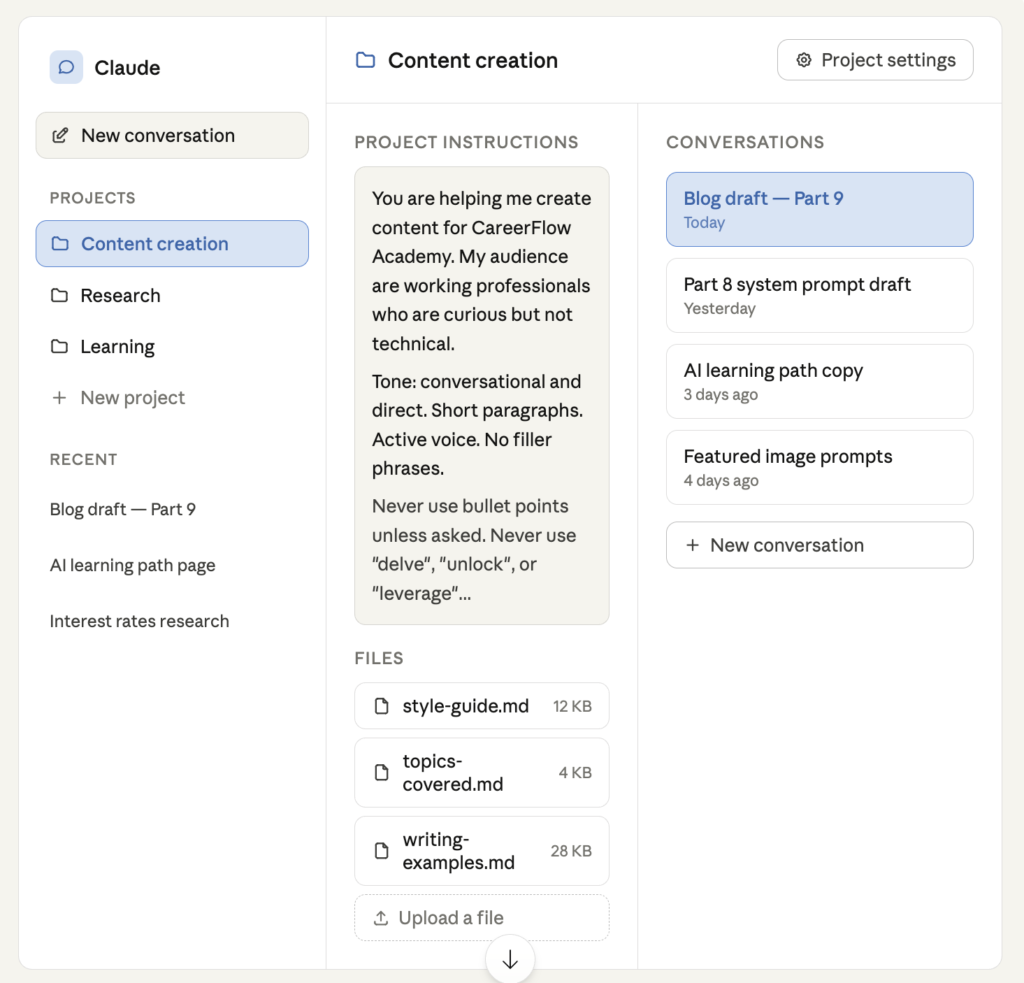
Content creation Project
This is the one I use most. The system prompt has everything about my writing voice, my audience, my tone rules, and the things I never want to see. The files folder has my style guide, a few examples of my best writing, and a document listing the topics I have already covered so Claude does not suggest something I have written before.
Every time I open this Project, Claude already knows all of that. I go straight to the work.
Research Project
When I am going deep on a topic over several weeks, I create a Project for it. As I find useful sources and summaries, I upload them. Claude can then draw on all of that context when I ask questions, make connections between documents, and help me identify gaps in what I have covered.
It is not the same as Claude searching the internet. It is Claude working with the specific materials I have curated. That distinction matters because it means the output is grounded in sources I have chosen and verified.
Learning Project
I have a Project I use when I am learning something over time. I upload notes from previous sessions, summaries of what I have understood so far, and questions I still have not answered. When I come back after a week away from a topic, I do not have to rebuild the context from scratch. It is already there.
How to Set One Up
This is simpler than it sounds. Here is the sequence.
Open Claude and look for Projects in the left sidebar. Click to create a new one. Give it a name that is specific enough to mean something to you in three months. Not “work stuff” but “newsletter drafts” or “Q3 campaign” or “product launch content”.
Once the Project is open, find the Project instructions box. This is your system prompt. Write the standing instructions you want Claude to have for every conversation here. If you worked through Part 8, you already know what goes in this.
Then look for the files section. Upload any documents Claude should always have access to in this Project. Be selective here. More files does not always mean better output. Upload what is genuinely relevant and leave out the rest.
That is it. Open a new conversation inside the Project and Claude will have everything from that point forward.
What to Upload and What Not To
This is worth thinking about before you start, because the temptation is to upload everything.
Upload things that give Claude permanent useful context. Your house style guide. A document describing your audience. A list of key terms and how you use them. Previous work you want Claude to understand and be consistent with. Reference documents you find yourself pasting into conversations repeatedly.
Do not upload things that are sensitive beyond what your organisation policy allows. Check Part 7 if you skipped it. The same rules apply here as anywhere else. Client data, personal information, confidential commercial details. None of that belongs in a shared AI tool unless your organisation has specifically approved it.
Do not upload things just because you can. If a document is not genuinely useful for the work this Project is for, it adds noise without adding value. Claude works through all the uploaded documents when forming responses. More irrelevant context can actually make the output less precise.
The Difference It Makes in Practice
Before I used Projects properly, every Claude session started with a small overhead. Pasting in context. Re-establishing tone. Reminding Claude what I had already covered. Correcting defaults.
It was not huge. Maybe five minutes per session. But across dozens of sessions it adds up. And more than the time, there was a friction to it. That moment of “okay, let me set this up again before I can start” is a small but real barrier to actually opening Claude when you need it.
Projects remove that friction entirely. You open the Project and you are already there. The context is set. The files are available. The instructions are in place. You start working immediately.
That might sound like a minor improvement. In practice it changes how often and how naturally you reach for the tool.
One Honest Limitation
Projects are a paid feature. If you are on the free plan, you will not have access to this the way I have described it. You can still use system-prompt-style context by starting conversations with a detailed context paragraph, as we covered in Part 3. It is more manual but it achieves something similar.
If you use Claude regularly for work and you have not considered the paid plan, this feature alone is probably worth thinking about. Not as a sales pitch. Just as an honest observation that the difference between the free and paid experience is meaningful once you are using Claude for real ongoing work rather than occasional tasks.
What’s Next
Part 10 is the honest post that most AI content avoids writing.
Claude gets things wrong. Sometimes subtly. Sometimes significantly. It sounds confident when it is uncertain. It can produce something that looks authoritative and is quietly incorrect.
Knowing how to spot this, what to watch for, and how to build simple habits that protect you from it is one of the most important things you can learn as a Claude user. It is also what separates people who use AI well from people who have been embarrassed by it.
Claude Series — Part 9 of 15. A beginner-to-expert guide to using Claude, written for people starting from absolute zero. No jargon. No assumptions.